Analysis
Plot the standard curve using Excel
Using Excel, generate a scatter plot of corrected μg of BSA protein (x-axis) against absorbance (y-axis for your Bradford assay data as described above. For your standards, you recorded microliters of BSA added to each tube. Make sure that you convert to micrograms of BSA from each standard assay before plotting the data (the BSA solution was 1.0 μg/μl).
After generating a scatter plot in Excel with μg protein on the x-axis and corrected absorbance on the y-axis, select a data point, then right-click and choose Add Trendline from the dropdown menu. Select Linear as the trend type. To approximate the trendline parameters, go to the Trendline Option and check the boxes labeled Display Equation on Chart and Display R-squared Value on Chart, located near the bottom. The slope is the coefficient in front of x in the displayed equation. The R² value is the coefficient of determination, which indicates how well the data points fit the linear trendline. Although it is convenient to display these details on your plots during data analysis, when you present your plots in the Results section of your report, the title, legend, equation, and R² should appear in the figure caption rather than on the figure itself (see the Writing Guidelines for figure formatting requirements).
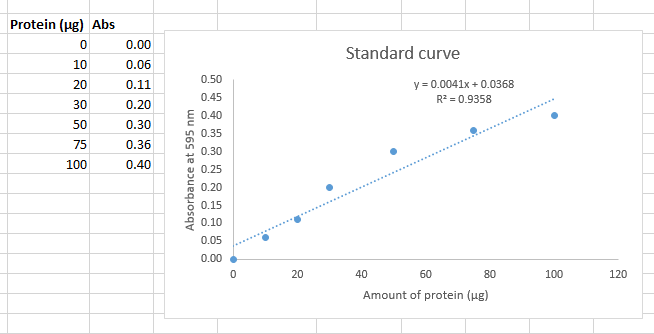
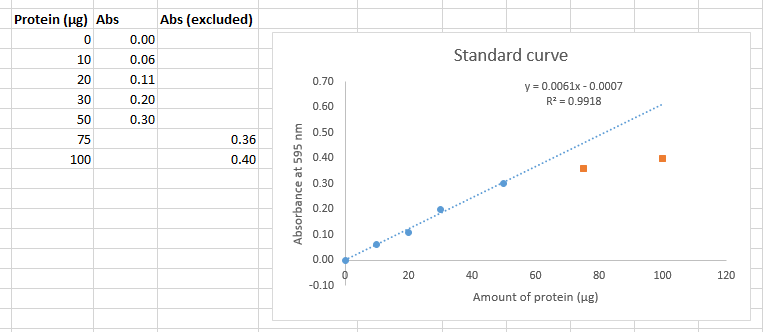
To exclude nonlinear data, you should move the y-axis points to a separate column, re-plot the scatter-plot, and only fit the trendline to the linear data.
|
Deciding which points to omit, if any, is somewhat subjective. From the perspective of scientific ethics, it is essential that you openly declare in your writing which data you have omitted and provide your reasoning. Here are some simple rules you may apply in this course:
|
|
If you are planning on printing in black and white, make sure that the excluded data points are a different shape than the included dataset. To do this, select the excluded points on your plot, select "Format data series" from the Right-click menu (or from the menus select Chart Tools, Format, Format Selection). From the "Fill and Line" menu (Paint bucket icon), select "Marker" then expand "Marker Options" then select "Built-in" then choose the shape for your datapoints. |
As you can see, now the trendline more accurately describes the data (as demonstrated by the improved R2 value). However, we are still limited by the trend line, any measured absorbance above 0.300 for an unknown cannot be used to calculate the amount of protein. You must repeat the experiment by adding a smaller volume of sample so that you get values in range of the standard curve.
For this experiment, you may find that some of the highest (and maybe lowest) concentrations will need to be dropped. This is normal for the Bradford assay. Below a certain protein concentration, the dye doesn't bind well. Above a certain concentration Beer's law breaks-down. Most measurements in chemistry have a limited range of validity, but as long as the absorbance of your sample falls in the linear range, you can accurately measure the unknown amount of protein in your sample.
Generate the trendline parameters
You should never use the equation given by Excel on the graph to convert absorbance to amount of protein. It often contains too few significant digits. Previously, you have used the SLOPE and INTERCEPT functions to get the parameters for the equation
$$ Absorbance = SLOPE \times \textit{Amount of Protein} + INTERCEPT $$The following is the syntax for the SLOPE, INTERCEPT, RSQ functions:
=SLOPE(y-values,x-values)
=INTERCEPT(y-values,x-values)
=RSQ(y-values,x-values)
For the y-values, simply highlight your y-axis cells (Absorbance) with your mouse then press comma. Next highlight the relevant x-values (Protein μg) cells with your mouse, type a closed parenthesis, and press Enter.
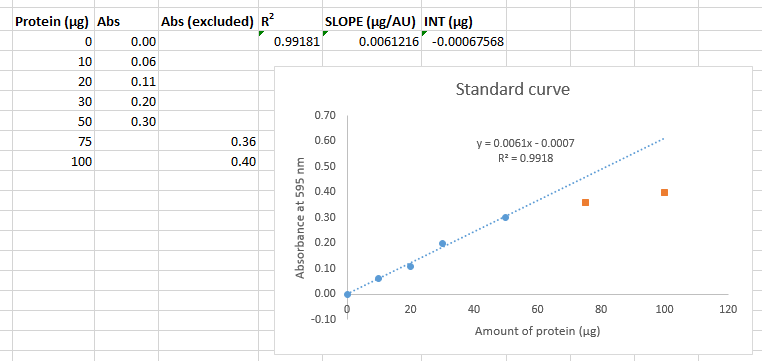
You should now have the equation
$$ A = (0.00612 \ \mathrm{μg}^{–1} ) \times P - 0.000676 $$which you can use to convert absorbance (A) to amount of protein in μg (P) by rearranging this equation algebraically to
$$ P = \frac{A + 0.000676}{0.00612 \ \mathrm{μg}^{–1}} $$Use this equation to calculate the μg of protein in each sample of your mushroom extract and each sample of the reference protein. Clearly label these results in your spreadsheet.
Calculation of Protein Concentration
Calculate the amount of protein (in μg) for each sample of your mushroom extract and reference protein for the Bradford assay.
Next, divide the μg of protein you calculated by the volume (in μL) of sample you put into the tube before adding the colorimetric reagent.
Finally, calculate the average and standard deviation of these concentrations. You may discard any extreme outliers, particularly if you believe that you made a mistake.
Sample A absorbance __________ converts to __________ μg ÷ __________ μl = __________ μg/μL
Sample B absorbance __________ converts to __________ μg ÷ __________ μl = __________ μg/μL
Sample C absorbance __________ converts to __________ μg ÷ __________ μl = __________ μg/μL
Average __________ ± __________ μg/μL
Correct for dilution (if applicable)
If you diluted your sample before measurement then your actual concentration is higher than the value you just calculated. Use the equation
$$ C_1V_1 = C_2V_2 $$to take this into account. For example, if you just determined that your value is 4.1 μg/μL and you diluted 200 μL of milk with 800 μL of water for a final volume of 1000 μl then you would calculate your undiluted concentration as
$$ (4.1 \, \mathrm{μg / μL})(1000 \, \mathrm{μL}) = (C_2)(200 \, \mathrm{μL}) $$ $$ C_2 = 20.5 \, \mathrm{μg / μL} $$Reference value for the dairy milk sample
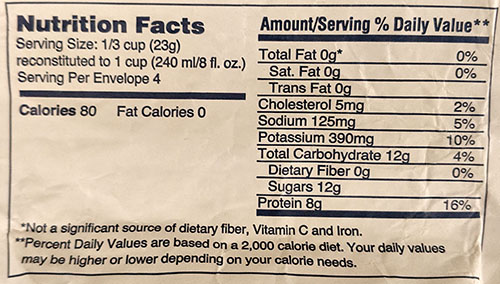
Source is Roundy's Non-Fat Milk Dry Milk Powder (purchased at Mariano's Fresh Market), prepared according to manufacturer's instructions.
Reference value for the soy milk sample
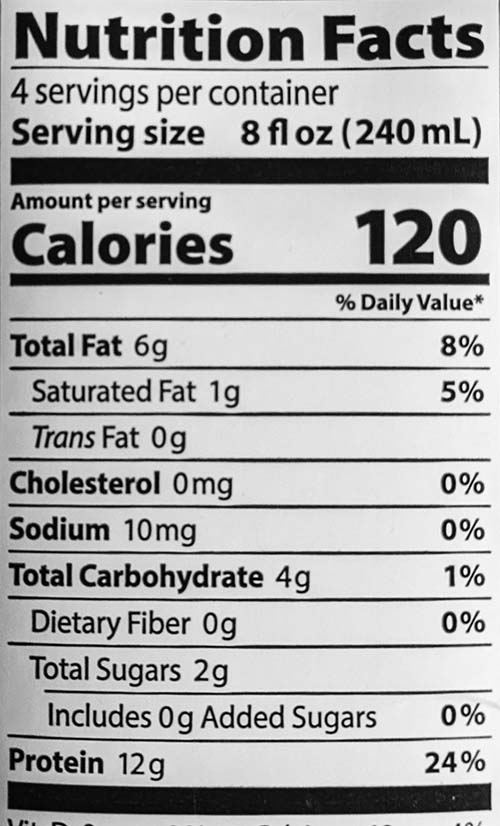
Source is Edensoy Unsweetened Organic Soymilk made by Eden Foods. Purchased directly from edenfoods.com.