|
Contact me |
||
| Announcements | Resources | Course Guidelines |
The information on this page
was taken from
http://service.depaul.edu/dpo/support/chmod.html
and
http://service.depaul.edu/dpo/support/unix/intro.html#Listing
Your UNIX account begins with the root directory. This is the area you arrive in after login. In order to move into another directory you need to use the cd command as in cd public_html. To move back to the root directory from any other directory in the account, type cd.
The asterisk * is a "wildcard" which means that by using it the account searches for all things that match the prefix and then allows you to access them. For instance cd pub* would change you into the directory that starts pub. As long as there is only one pub directory you won't have problems.
Permissions (also known as the chmod discussion)
Your UNIX account requires that you set permissions. Permissions refer to the ability to read, write or execute a file.
Read Permission: This allows the file to be "read-only" by people with the appropriate permission. This means that a file/page can be read or seen from the Internet.
Write Permission: This allows people with the appropriate permission to write to, and change your files. This means that a file can be coded or in some way modified by the user/audience.
Execute Permission: This allows others to execute, or run these files, if they have permission to.
Setting permission in UNIX is done with the chmod command. As permissions allow for the possibility of writing and executing to your account, be very careful with the permissions you set.
Make sure that you are setting permissions in the correct area (i.e. what section of your account are you in? The root? Public_html directory?) In order to determine what permissions are set for a file or directory type ls -l which gives the long list of info about a file including the file attributes, owner, group, file size, date of last modification, and file name.
For example:
drwxr--wxr--wx sberger psycfclt 96 Sep 10 22:12 public_html/
The string on the left side of each file description details what permissions are set for that file. The string can be broken down into the following sections:
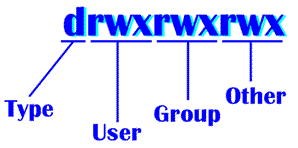
The first 'bit' of this entry indicates whether the file is a directory or not. If the first bit is a d, this indicates a directory.
The next three segments of three bits each define what permissions are set for what users.
User is defined as the person who created the file.
Group is defined as the group of people on the local system that may be able to access that file.
Other is defined as anyone that may be able to access that file, regardless of which system they are on.
Each one of these three-bit segments is formatted in the following way
rwx
With r denoting read permission, w denoting write permission, and x denoting execute permission. So, if the bits are set up as r-x, which would mean that only read and execute permissions are on.
-rw-r--r-- 1 sberger psycfclt 0 Sep 24 10:15 index.html
Now we can see, that the file index.html has:
- No directory bit (therefore, it's not a directory). ·
- Read and write permission for the user. ·
- Read permission for the group. ·
- Read permission for the other.
To change permissions you use chmod. The format of the command is:
Chmod bitstring filename
Where bitstring is a number, corresponding to the permissions you would like to set on a certain file. The bitstrings are formed in the following way. They consist of a three digit number in which the first digit refers to the user permissions, the second digit refers to the group permissions and the last digit refers to the other permissions. The digits are calculated in the following way:
- 4 denotes read permission
- 2 denotes write permission
- 1 denotes execute permission
To give multiple permissions, simply add the numbers. For example, to give read and write permissions the digit used would be 6 (4+2) and to give all permissions, you would use a 7 (4+2+1). Now, to finish the task, simply insert the proper digit in the proper place in the bitcode, and you are all set.
Examples
chmod 711 filename
This is a common permission set for directories, since they have to be executable to be accessed, and the user should have all permissions to that directory. This gives the user all permissions (7), and the group and other just execute permission (1) Directories need to be executable, or else there will be no way to go into, and see what is in that directory..
chmod 644 filename
This is the permission set for basic files, such as HTML files or any other type of file that does not have to be executed. The user has read and write permission (6), and the group and other have just read permission(4).
chmod 755 filename
This is the permission set to be used for executable files, such as programs. The user has all permissions(7), and the group and other have read and execute permission(5).
|
Contact me |
||
| Announcements | Resources | Course Guidelines |