 Accessing DePaul Virtual Lab
Getting Help
If you carefully read the explanations of this process (i.e. the Background section), and carefully follow the instructions, this process should not be particularly difficult. But please DO make sure you understand the process. It will help you head off a lot of potential confusion.
If you need help please contact any of the following:
Help & Support: https://offices.depaul.edu/information-services/support/Pages/default.aspx
CDM Technical Support: techsupport@cdm.depaul.edu
Background
It is going to be necessary for all students in courses such as IT-123, IT-130, IT-202 to access the "DePaul Virtual Lab". This is a resource that gives access to all kinds of applications. You will likely already have some of these applications installed on your own personal computers. However, there is one application that will NOT work from your personal computers. This application is called FileZilla. And if you are taking a course in web design, you will NEED to use FileZilla (or a similar ftp application) in your course.
FileZilla Will NOT Work on Personal Computers
While it is certainly possible to download and install a copy of FileZilla on your computer, it will not work for the purposes of your web design course. Therefore, you MUST access this particular application from the DePaul Virtual Lab.
What is FileZilla?
You will shortly learn all about FileZilla in the course. Briefly, it is an application that will copy files from a "local" computer to a web server. When you learn to create web pages, you will create those pages "locally", i.e. on your personal computer. However, to make the files visible on the internet, you will need to copy your file(s) to a web server. To do that, you need FileZilla. Again, you will learn more about this in your web design course.
For now, however, you do not need to worry about FileZilla. The key right now is to connect to "DePaul Virtual Lab".
How to Access DePaul Virtual Lab (DVL)
Step 1: Install "Windows App"
The first step to connecting to DVL is installing an application called "Windows App"
Yes, I realize this is a very unhelpful name for an app!
The app has this name for BOTH Mac and Windows operating systems.
NOTE: Please let your professor know if these links are broken so that I can update this page.
Step 2: Create a Connection to the DePaul Virtual Lab
You should only have to do this step ONE TIME.
Open "Windows App" on your computer, and complete the steps on the page shown here:
Windows users should follow the instructions on this page.
Mac OS users should follow the instructions on this page.
When you are done with this step return to this page, and proceed to step #3.
Step 3: Connect to the DePaul Virtual Lab
Once step #2 has been completed, connecting to DVL over and over again throughout your course should be straight forward.
Start "Windows App" on your personal computer. When you do, you should see something very much like the image shown.
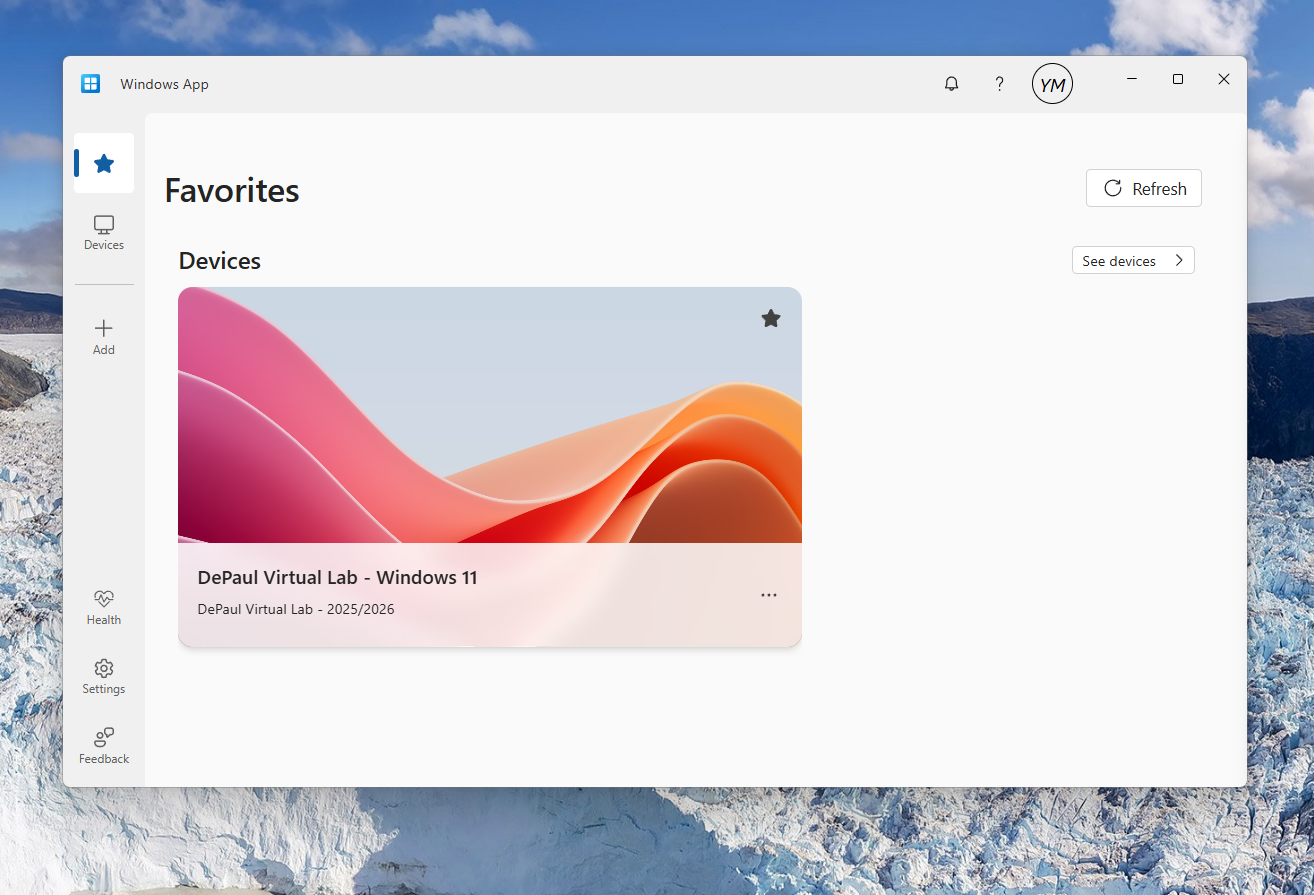
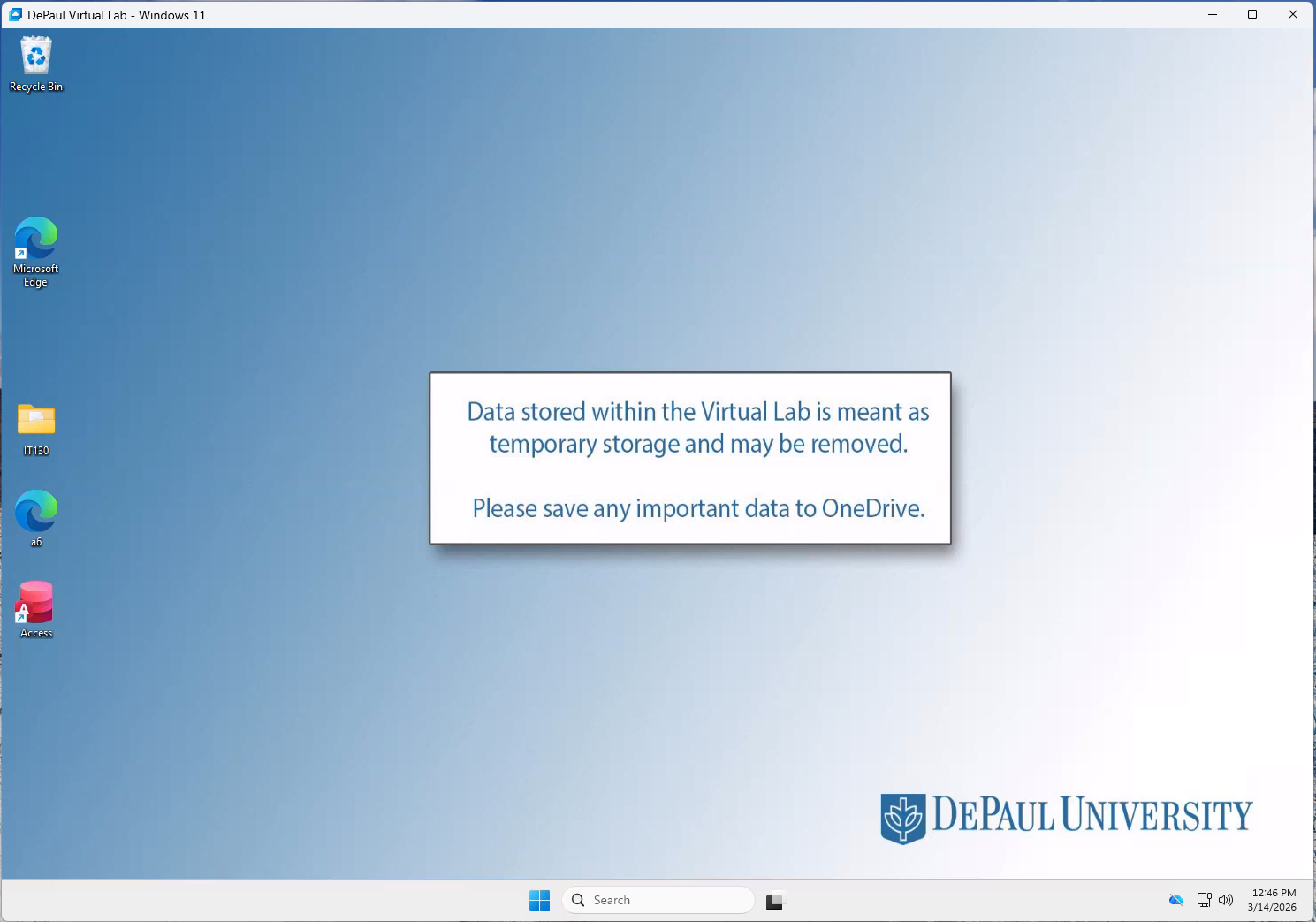
Now simply click on the tile labeled "DePaul Virtual Lab" (as seen above) and you should be connected! At this point you will see something like the following:
Step 4: Confirm Your Understanding of What Is Going On!
Once you are connected, you now are working on a DePaul Computer just as if you were sitting in someone's office on campus! You are, in a sense, working on a computer "within" a computer. That is, while at this very moment are likely sitting at your personal computer, your desktop is showing a completely separate computer. This computer will have a completely different group of applications installed on it.
Shown here is a screenshot of my entire desktop with 3 applications open: Word, Notepad, and the DePaul Virtual Lab (it's the one on the left).
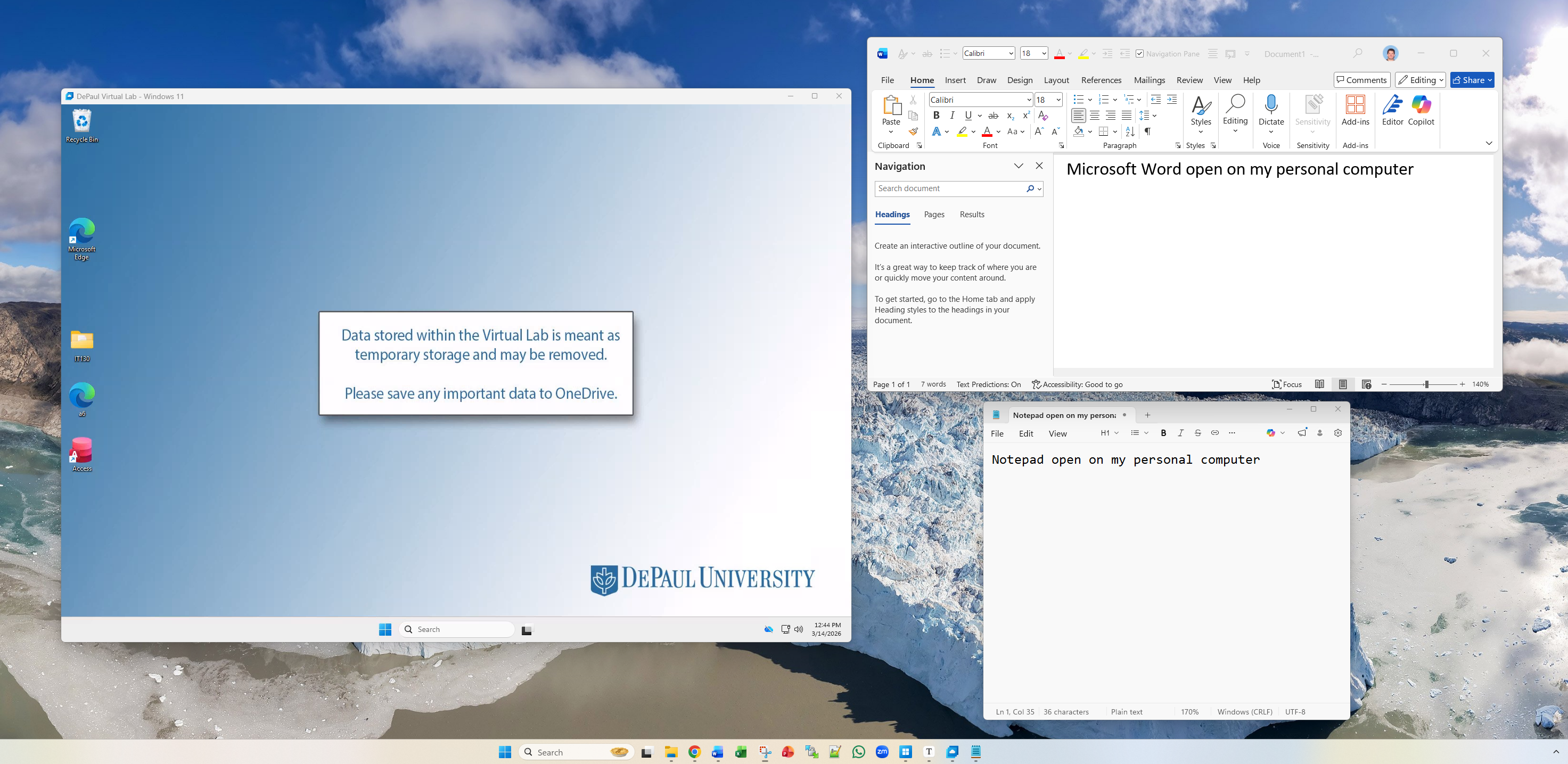
To restate: One of (possibly many) applications that are currently open on your personal computer is a connection to a completely separate computer! You are basically working at two computers at the same time: Your personal computer, and a second remote (virtual) computer. You can now access any application available on that remote DePaul computer.
Step 5: Test By Opening FileZilla
Note the little dialog box labeled "Search" at the bottom of the Virtual Lab window (see the red arrow below). Inside this box, type "FileZilla". The icon for the application should appear. You should see something like the following:
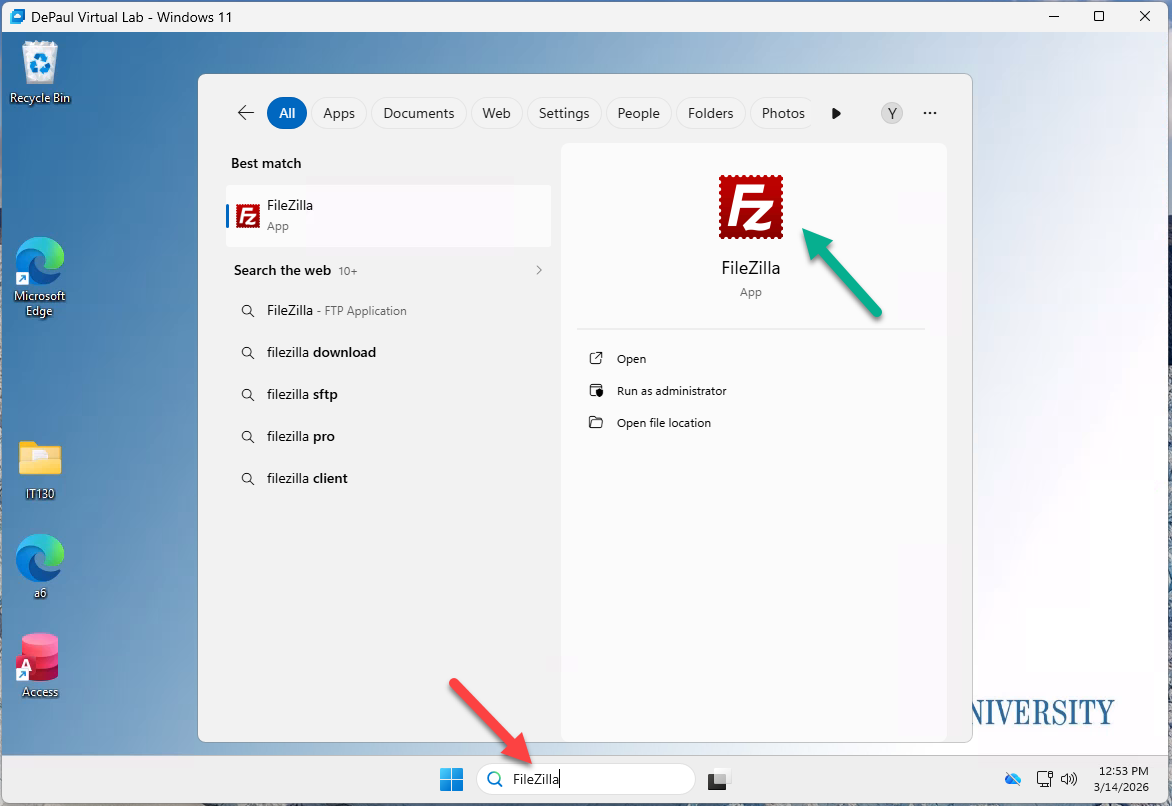
The red arrow shows where I typed the text "FileZilla"
The green arrow shows the icon to start FileZilla.
Clicking on FileZilla should show something very similar to the following:

Learn to Use FileZilla
This will be covered as a separate topic in your course.
CONGRATULATIONS! You have successfully installed, configured, and executed a connection to DePaul Virtual Lab!