Using FTP and Attaching Files (with Shrike account)
In order to email files (especially Windows Application type files)
  you must first save your file to the local computer's hard drive
  or save your file to a floppy.
Once you have done this, you can make a copy of the file to your shrike
  home directory using File Transfer Protocol (FTP) and then
  ATTACH it to your email.

Part I : Using FTP

From the Internet Applications group icon, select FTP (or WS_FTP).
  A Window opens up asking you to fill in information about the
  FTP session you are about to begin.

Refer to the following image for the rest of part I.
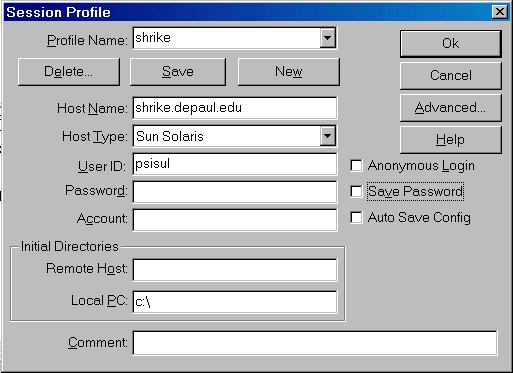
For simple FTP tasks, click the arrow in the Profile Name: box and select
  shrike (if not already selected).
Since the profile is already set up, the following should appear in the other entry boxes:
Host Name : shrike.depaul.edu
Host Type : Sun Solaris or Automatic Detect
You need to add the following:
User ID   : put your Shrike login here <then press TAB key>
Password  : put your Shrike password here ...the password should
    appear as ******* as you type.  If you omit password now you will be
    prompted to enter it later.
Local PC  : enter the drive which contains the file(s) you want to transfer
    (you can enter a: for floppy or c: or e:, depending on where you saved
    your files).

Click OK and then your screen should look something like the following image.

If you don't get the the following screen, check the status bar at the bottom, just
  above the text buttons.  If you don't connect, you can reconnect by selecting the
  CONNECT button at the bottom.
This image shows a connection to CONDOR; yours should connect to 'shrike'.
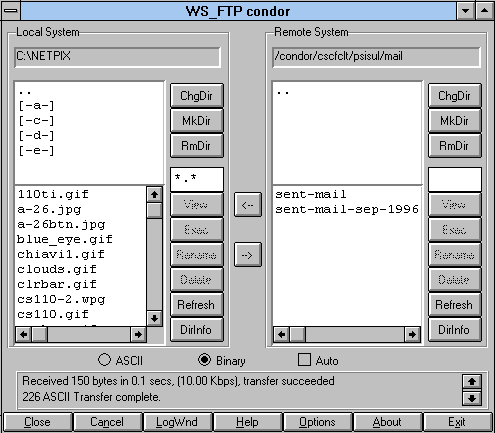
The rest should be easy.  In the left column are the files of the drive
  of the local system.  If the file you've saved and need to transfer is not listed,
  you can switch to the proper drive similar to using File Manager.  Note that clicking
  the double dots (..) in the upper part will move you back in the Directory Tree.
You can move (transfer) files from left to right (Local to Remote System) or
  right to left (Remote to Local System).  Check to see that your home
  directory (with some directories or files listed such as mail, sent-mail)
  is displayed for the Remote System.
Normally, at the bottom part of the screen, there are three buttons to
  select the transfer format - ASCII, Binary, or Auto.  Click Binary if it
  is not already selected.

Ready to FTP: click (once) on the file you want to transfer, then click on
  the --> symbol in the middle area of the screen.  This should begin the
  transfer.
After transferring, you can rename the file as it appears in the Remote
  directory.  It might be good to rename the file with yourname + .wpd or
  .xls   (Filenames in Unix follow different rules than in DOS or Windows,
  but since this file will be attached and later loaded back into a Windows
  application, stick with the 8.3 character restrictions syntax; 8 for filename
  and three for extension).
If the transfer was successful, close FTP and startup your Shrike account.

Note: WS_FTP is drag and drop compliant for dragging file icons
  into the WS_FTP window.  This makes it easy to transfer local files INTO
  shrike.  Simply show both the FTP window and, for instance, Windows 95
  desktop at the same time. To transfer a file form the Desktop to shrike,
  simply drag the icon for the file from the Desktop into the display
  region of WS_FTP's view of shrike. You can transfer files from file
  managers also, such as My Computer or Explorer.
  Caution: when using the drag and drop method, uppercase characters
  are stripped from the filename.  You may have to rename your file or
  change the image tag that refers to the image.


Part II :  Attaching a File in Email

After logging into your Shrike account, type 'ls' to see that the name of
the file you transferred appears.  You can type 'ls -l' to see the full
display of your home directory - check to see that the length of the file
is NOT 0 bytes long.  If the file is 0 bytes long, something went wrong and
you will have to retransfer the file or check the original file.
Type 'pine' to enter mailing utility.
Type 'c' or select compose

From this point, email as you normally would, except at the line which
  says Attachment: type Control J (at the bottom of the screen you can see
  ^J command identifies 'attach file' command (the '^' symbol means press
  and hold CTRL key).
*** Enter the name of the file to be attached, press ENTER.
   (The filename is case sensitive; that is, it must be entered in the
   exact upper and lower case of the filename.  Instead of typing in the filename,
   you can view the folders and filenames by pressing ^T and select the file
   name from the names listed.)
*** After pressing ENTER, type in a short message that will
   identify what you're attaching, then press ENETER.
*** Be sure to indicate SUBJECT :
   Enter a simple message about what you're doing.
*** Send it by pressing CONTROL X.
   NOTE: you do not need to send a copy of the email plus attachment (at
   Cc:) to yourself.  Any sent email is automatically copied into your 'sent-mail'
   folder.  You can, however, send a copy of email with an attachment so that you
   can view what it looks like when you receive email in shrike with an attachment.

That's it !  Amen.