In this portion of our project, we used the same data containing Courses, Instructors, Authors, and Book Titles. However, here we used the Oracle database instead of Microsoft Access. We used Oracle's JDBC drivers and JDeveloper to create the JAVA application frontend. Oracle Server for Windows NT and Oracle JDeveloper for Windows NT was obtained from the Oracle Magazine in the form of a 30 day trial CD. Oracle 8 Server for Windows NT, along with other versions, can be obtained from Oracle's web site at http://www.oracle.com. You must first become a member of the site; membership is free. The downloads are large but they are worth it.
The installation of Oracle 8 Server and Oracle JDeveloper for Windows NT is straight forward. I will not go into the details of the installation here. The main point of this excercise is to show how easy Oracle has made it to develope JAVA applications that connect to an Oracle database effortlessly.
Once you have Oracle 8 Server installed on your system you must login as (system) using password (manager) and create a normal user account for yourself. You must then set up all your tables in the Oracle database. The tables that your JAVA application will use must be established in Oracle before you start using JDeveloper, otherwise you will have nothing for JDBC to connect to.
After starting JDeveloper, I selected New Project... from the File menu and the following screen appeared:
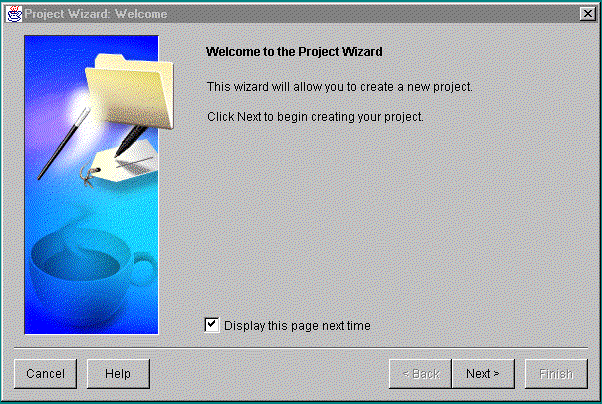
After clicking next, the following screen appeared:
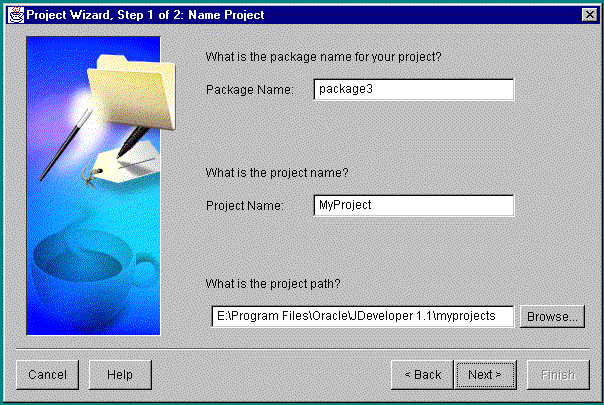
I left the default values here. The Package Name field is the name that will appear in the title bar of your Java application. The Project Name is the name of the file that contains all the information about your project; things like files and directories.
Moving to the next step we get the following screen:
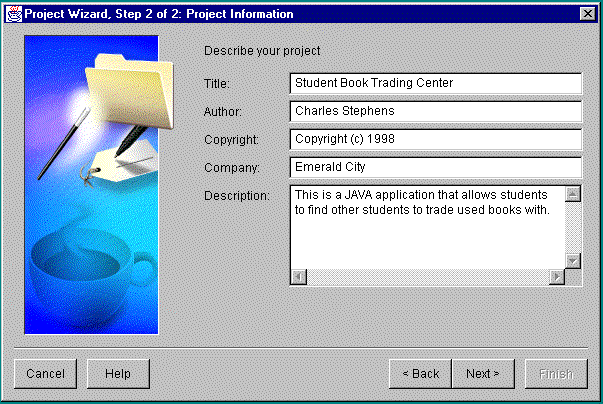
This is the last step in setting up your project in JDeveloper.
So far, all we have done is set up the project. The next phase of this exercise is the most important part. The next phase involves using the JDevloper's connection wizard to connect to your Oracle database.
Automatically, after setting up the project the following Application Connection Wizard screen will appear:
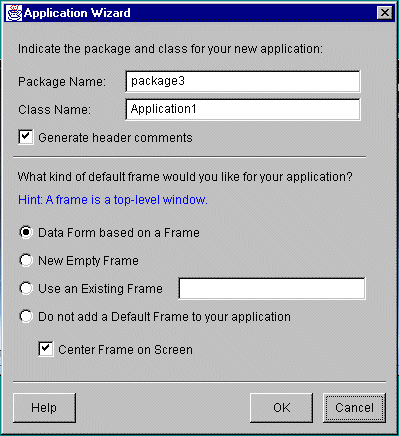
Here, once again, I chose to leave the default values.
The next screen sets upu your java class and is as follows:
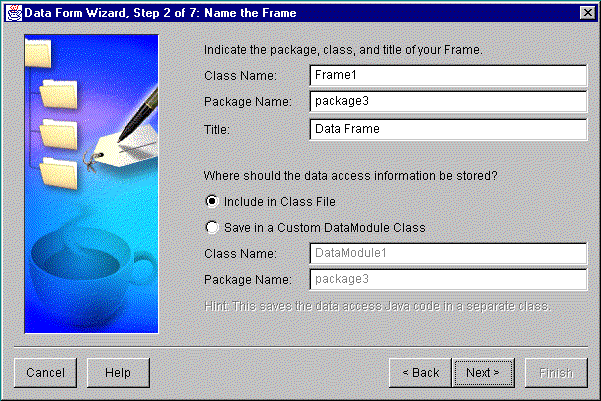
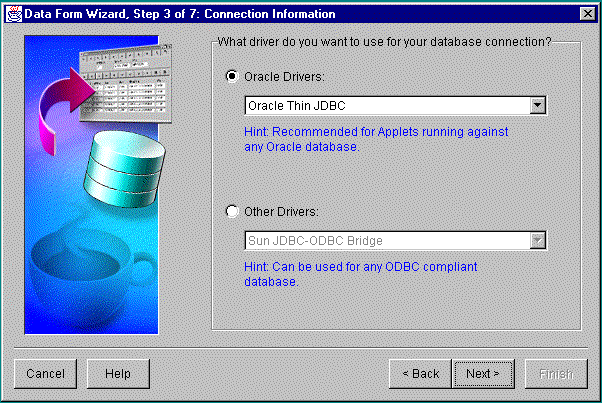
This window lets you set up which Oracle JDBC drivers you will use. Since I am using an Oracle database, I will connect directly with the Oracle Thin JDBC. Had I been using JDeveloper with another database like MS Access or DBaseIV, I would have to use Sun JDBC to ODBC Bridge.
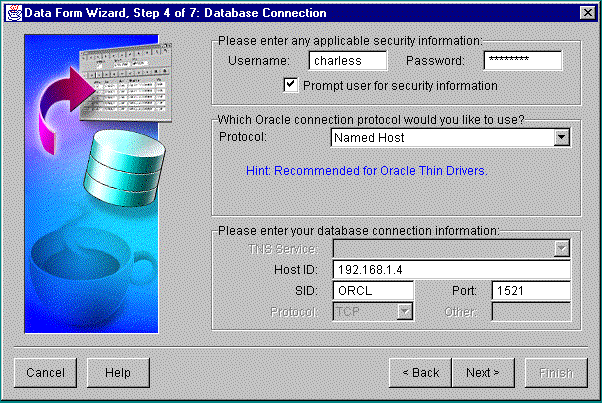
This next screen sets up the login information about your Oracle Database. It also lets the application know what machine on your network has the data. I used the IP address to identify my Oracle Server machine. I could have used the computer name. If you check the "Prompt user for security information" check box, the system will ask for your login information every time you run the Java application.
After connecting to the database, it looks to see what tables you have in your Oracle account. It lists the tables and give you a chance to choose which tables the application will use. You can also select views to use with your application. Here is the screen:
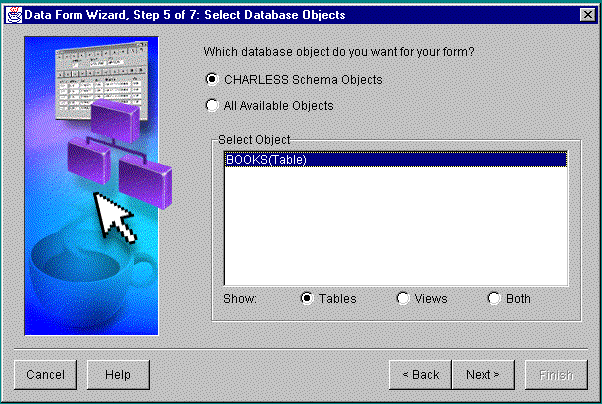
The next screen lets you select which fields from the tables and or views you selected previously your application will use:
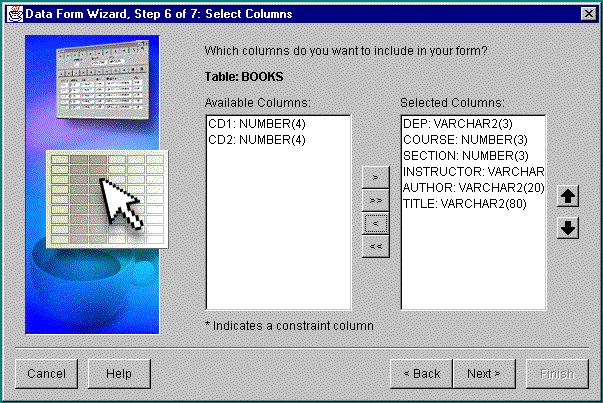
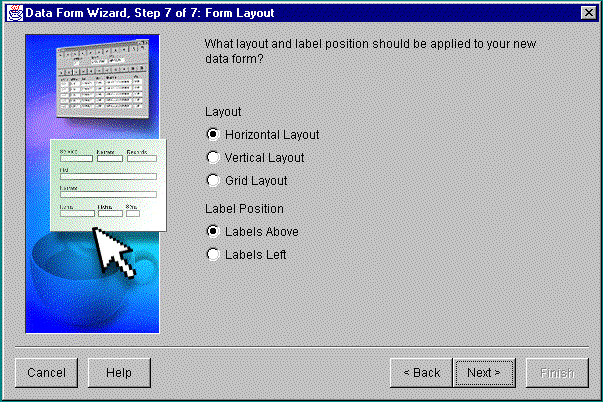
Now that you have all the information about the data, the next screen will let you select a layout. The layout can be changed graphically using the JDeveloper tools. Here is the final screen:
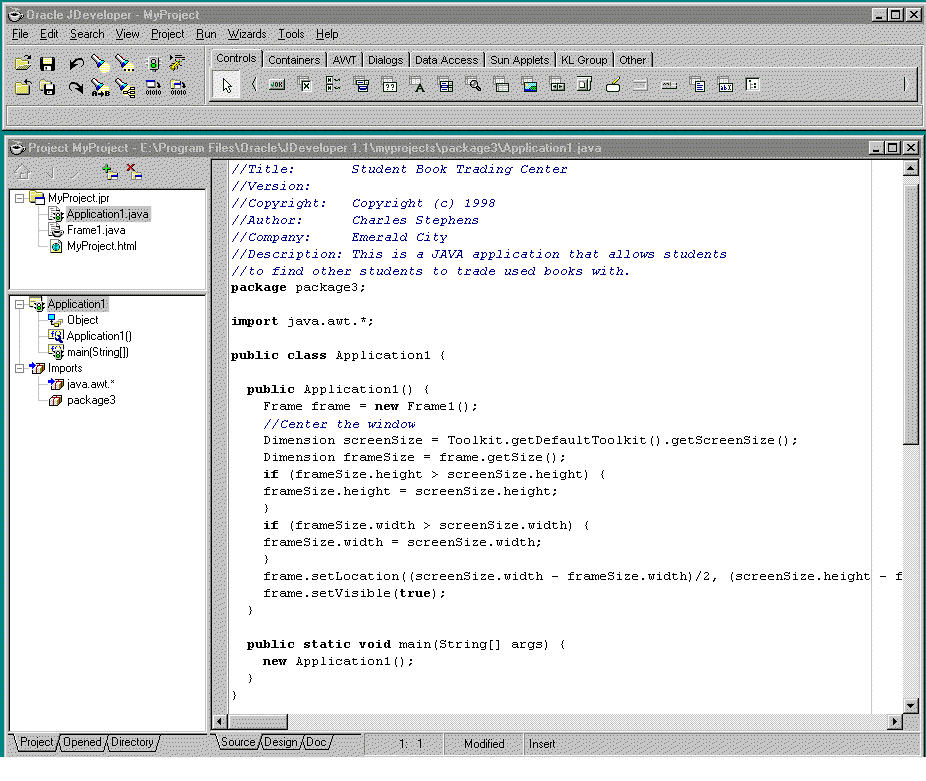
Here is a screen shot of the JDeveloper interface. It is quite similar to Bolands Delphi and MS Visual Basic. As you can see from the source code, it looks like they are using templates from Bolands JBuilder.
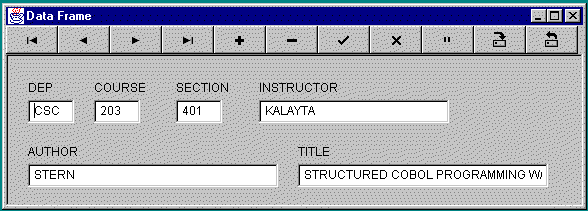
And finally, here is a snapshot of the final application:
Source Code:
There are four files generated with the project:
| DS420 Projects Home | JDBC Project Home |